
Overview
After you've received an order, you should review and "Check-In" the order to ensure you've received everything as it should be.
- If issues are found during check-in, complete check-in, then refer to Report an order issue.
- To look over past delivery check-ins, refer to Review a past order check-in.
Note: Screenshots shown were taken from the mobile app. However, all information in this article is applicable regardless of how you access the app: via mobile phone, tablet, or the desktop web portal.
Check-in a received order
- From the main navigation menu, select Order History.
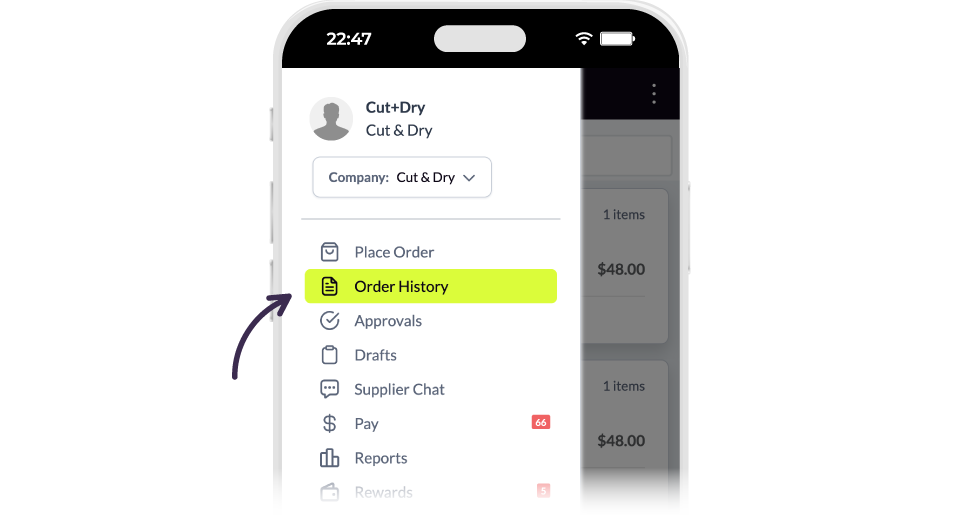
- On the Order History screen, select the order that was just delivered.

- Select Check-In Order.

- Compare the items ordered with those you've received.
- If all items are there and there is no issue, continue to Step 5.
- If there is a problem with the order, select Report Issue and refer to Report an order issue.

- Select Check-In All

- Select Confirm on the popup

Result
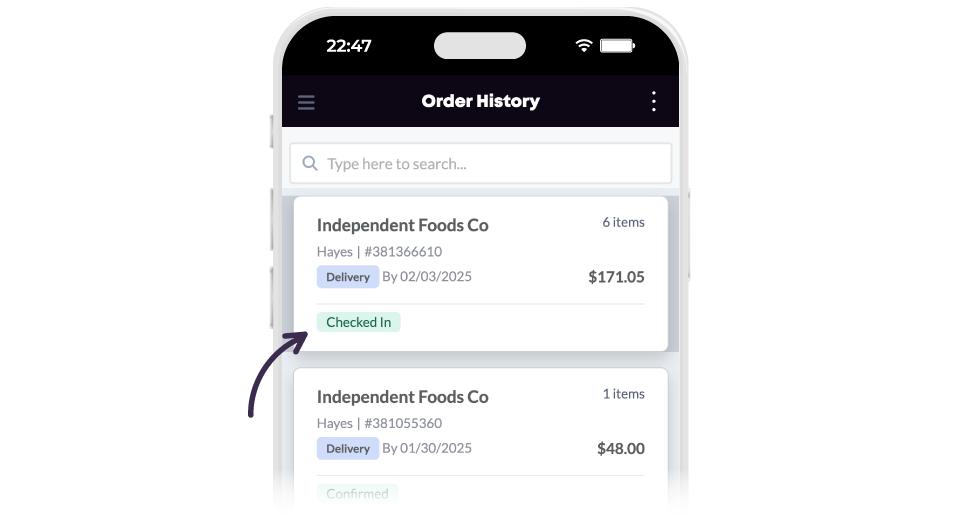
Your order is now checked-in. On the Order History screen, it will now show with a Checked In status. If desired, you can review your check-in; the order's Timeline tab will add the check-in date and time to the order timeline.
Comments
0 comments
Please sign in to leave a comment.